From taskbar to timesheet
Your timesheet fills itself right from the taskbar
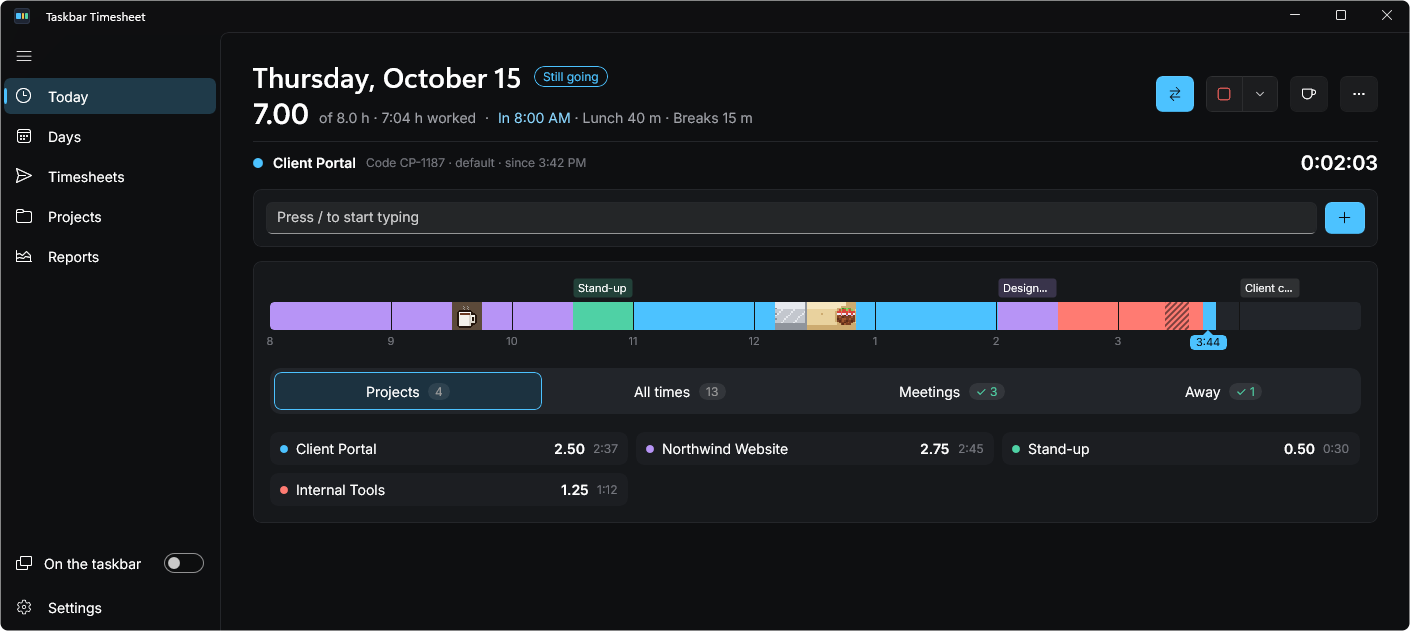
Taskbar Timesheet keeps track of your day while you work. When your timesheet is due it fills it in for you. It lives right on the Windows taskbar so it’s always one click away.
Windows 10 and 11 · Up to 3 PCs · Your data stays yours
Features
Everything you need for your workday
It keeps up with your day as it happens and only asks when it really needs to. Then it turns it all into the hours your timesheet wants.
Tracks itself
- It notices when you lock your PC, step away or sign back in.
- Lunch and breaks get picked up on their own. Skipped lunch? It adds your usual one.
- When you’ve been away it asks what you were doing instead of guessing.
- Click any part of the day to fix it. Fill a gap in a couple of clicks.
Made for the keyboard
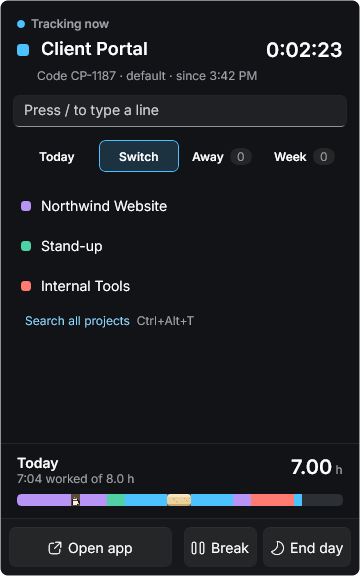
- Press Ctrl+Alt+T from anywhere to switch projects. Type a few letters and hit Enter.
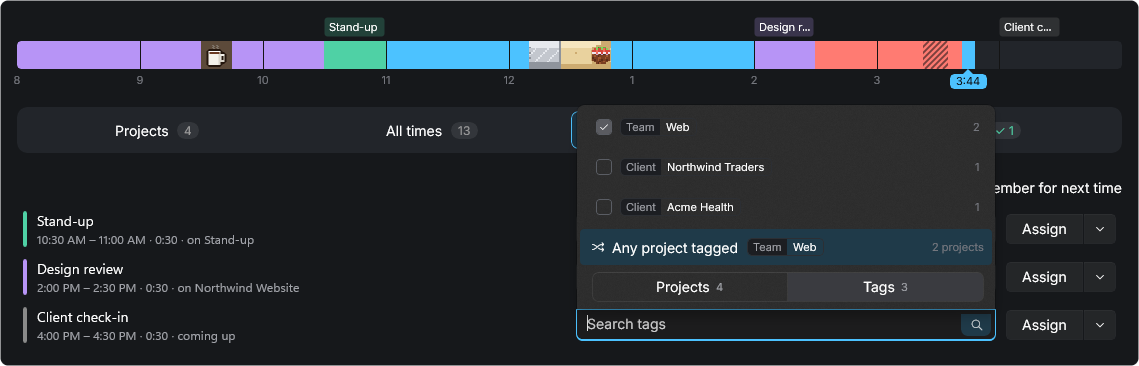
- Type time the way you’d say it. “website 9a 10:30a” lands right on your day.
- Every page has its own Ctrl shortcut. Press / to search.
Days off too
- Mark PTO, sick days, vacation and holidays. Half days and a few hours off work too.
- Bring in your company’s holiday list straight from its web page.
- Your week shows what it still needs once your time off is taken out.
Your meetings, sorted
- Your Outlook meetings show up above your day. A calendar link works too.
- Set a rule once and recurring meetings go to the right project every time.
Timesheets, filled for you
- Show it your timesheet page once and it learns where everything goes.
- Hours are rounded the way your timesheet wants them.
- You always look it over and press submit yourself.
Reports and billing
- See your hours by project, day or tag and save them as a spreadsheet.
- Set hourly rates and make PDF invoices. It remembers what you’ve already billed.
- Send your hours to QuickBooks.
All your PCs
- Use it at work, at home and on your laptop.
- Your PCs stay in step through a folder you already sync like OneDrive or Google Drive.
- There’s no account to sign up for.
Private by design
- Your hours stay on your PCs. We never see them.
- No ads and no tracking. The only thing it sends out is a quick license check.
- Call them projects, clients or jobs. Pick your own accent color.
Made for the keyboard
Ctrl+Alt+T from anywhere
Switch projects without leaving what you’re doing. Type a few letters or a whole line. It shows what Enter will do before you press it.
Every page has its own shortcut too. Settings has the full list.
Tags
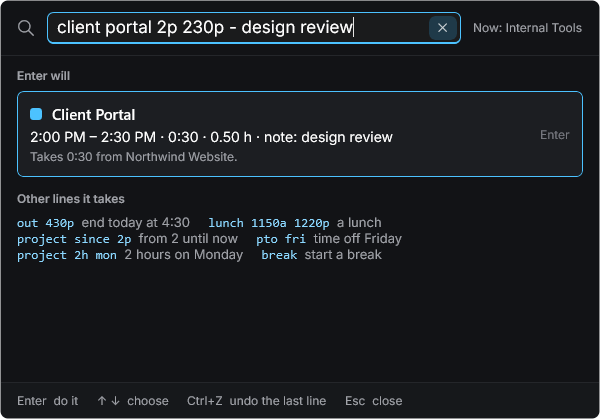
Let it pick the project
Tag your projects any way you like. Client, team, anything. Some meetings cover several projects at once, like a weekly team sync. Give it to any project with a tag and the app takes turns so each one gets its share.
Tags also group your reports and can set billing rates. They never show up on a timesheet.
Timesheets
Fills the timesheet you already use
Open your timesheet page in the app once and show it where each project goes. From then on it fills the page for you with hours rounded the way your timesheet likes. You look it over and hit submit.
Tested with
- Paychex Flex · the week’s hours on the time sheet page
- SharePoint lists · one row per day, even the days you missed
- SAP time entry · state and company HR portals
- BambooHR · each block of time on each day
- Tempo Timesheets for Jira · a log per block, with your notes
Made to work with web timesheets like
ADP, Workday, UKG (Kronos), Deltek, Replicon, Paylocity, your company’s own timesheet page.
Timesheet not filling right?
Email support@taskbartimesheet.com and we’ll help set it up for you. To show us your page, open it in the app, click the yellow Report a problem button, press Record and do one entry yourself, then Save report and attach the zip. In the meantime you can copy your week as a table and paste it into Excel or anywhere you like.
Reports and billing
Bill clients for the hours you already tracked
Pick any dates and see your hours by project, day or tag. Save them as a spreadsheet in one click. If you bill clients you can set hourly rates and make a PDF invoice in seconds. It keeps track of what’s been billed and can send your hours to QuickBooks.
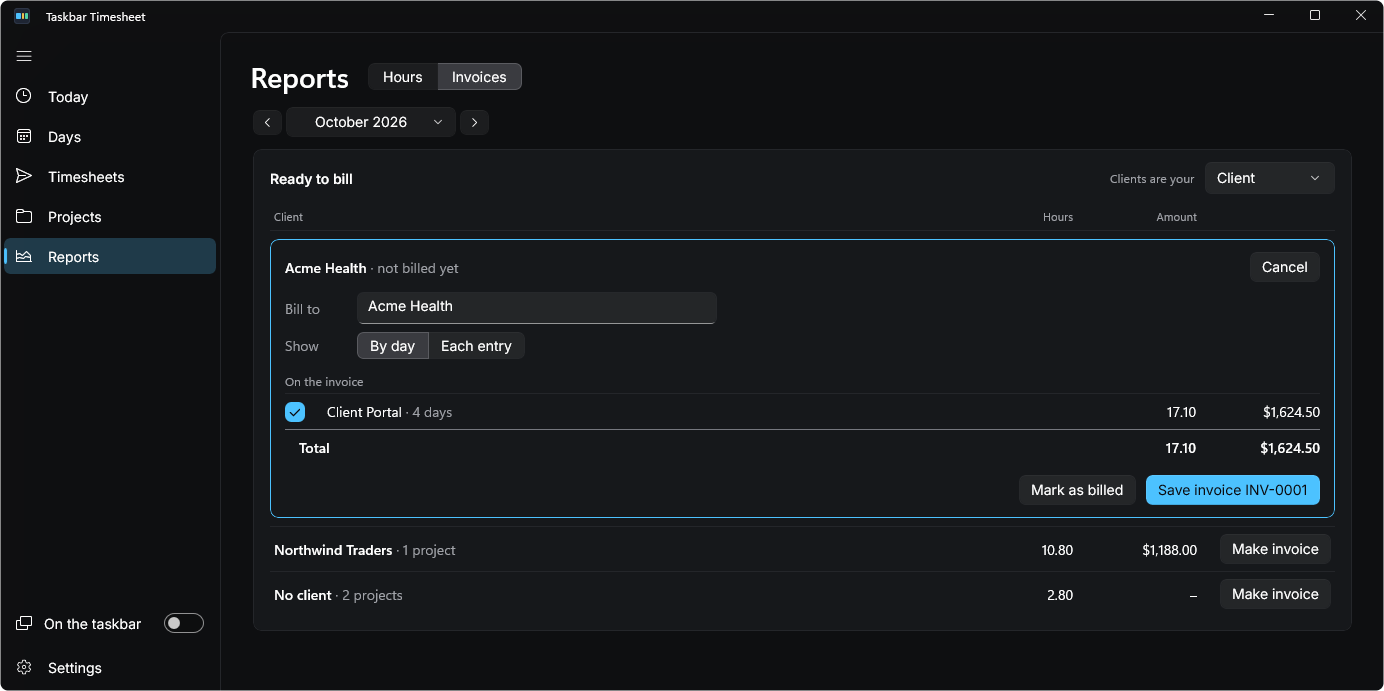
Reports and billing stay hidden until you turn them on.
Lunch and breaks
Lunch looks like lunch
Your lunch shows up on the day as actual food. Pick a favorite or get something different every day. You can even plan the week. Taco Tuesday works.
Plus 13 more, from burritos to ramen.
Breaks get their own pictures too.
Pricing
Buy it once. It’s yours.
No subscription. Try every feature free for 14 days first.
- Every feature included
- One person on up to 3 PCs
- A year of updates included
- Your license never expires
- 30-day money-back guarantee
Another year of updates for $24.99, starting a year after release.
FAQ
Questions and answers
What happens when the trial ends?
The app stops tracking and goes view only. You can still see every day and report. Nothing gets deleted. Buy a license and it picks right back up.
Does it submit my timesheet for me?
No. It fills in the page and stops there. You look it over and press submit yourself.
My timesheet isn’t listed. Can you make it work?
Most likely. Email support@taskbartimesheet.com with the name of your timesheet site and we’ll work with you to get it filling.
It helps a lot to attach a report from the app. Open your timesheet page in the app, click the yellow Report a problem button, press Record and do one entry yourself (stop before you save), then press Save report. Nothing is sent for you: you choose who gets the zip. Passwords are never in it.
Until then you can copy your week as a table and paste it anywhere.
Where is my time kept?
On your PC. If you use more than one PC they share through a folder you already sync like OneDrive or Google Drive. We don’t have a cloud and we never see your hours.
Does it need the internet?
Only to activate your license. After that it checks in about once a month and can go up to 60 days offline.
How many PCs can I use it on?
Up to 3 at a time as long as they’re all yours. Got a new PC? Remove the old one from your license and activate the new one.
What happens after the first year?
Your license never runs out. A year of updates comes with it. Renewing for $24.99 to get another year of new versions starts a year after release. You never have to. The version you have keeps working, though a big Windows change down the road could one day need a newer one.
Can I use it without a mouse?
Yes. Ctrl+Alt+T switches projects from anywhere and every page has a shortcut. Settings has the full list.
Do I need admin rights to install it?
No. It installs just for you so it works on most work PCs. Your IT team can also install it for everyone.
Is there a Mac version?
Not yet. It’s Windows 10 and 11 only for now.
Can I get a refund?
Yes. If it’s not for you just ask within 30 days of buying and you’ll get your money back.
Something else? Email support@taskbartimesheet.com.
From taskbar to timesheet
Track today without thinking about it. Fill Friday’s timesheet in a click.